
How to use Auto Clicker
Everything in the app, tab by tab. If you only need the basics: set the interval, put your mouse where it should click, press F6.
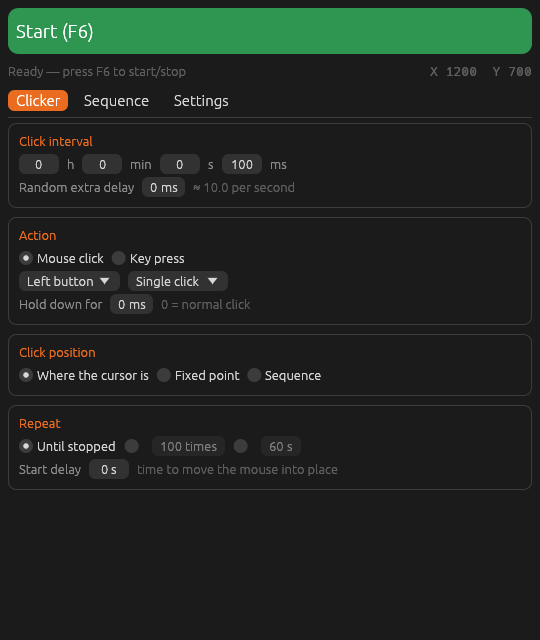
1. Click interval
The four boxes are hours, minutes, seconds and milliseconds between clicks. They add up, so 0 h 0 min 1 s 500 ms means one click every 1.5 seconds. The grey text shows the result as clicks per second.
Random extra delay adds between 0 and that many milliseconds to each gap, so the rhythm is not machine-perfect. 100 ms + 50 ms random clicks every 100–150 ms.
2. Mouse click or key press
In Mouse click mode choose the button (left, right, middle) and the click type (single, double, triple). Hold down for keeps the button pressed for that long before letting go, useful for games that charge an action while the button is held.
In Key press mode Auto Clicker becomes an auto key presser: pick Space, Enter, Tab, an arrow, a letter, a number or an F-key. The key goes to whatever window is focused.
3. Click position
- Where the cursor is clicks under the mouse pointer. You can move the mouse while it runs. It pauses while the pointer is over Auto Clicker’s own window.
- Fixed point moves the pointer to one X/Y position for every click. Click Pick location, then click anywhere on screen to fill in the coordinates. The live X/Y readout at the top right shows where the pointer is now.
- Sequence clicks a list of points in order and loops. Build it on the Sequence tab.
Random offset moves each fixed or sequence click up to that many pixels away from the exact point.
4. Recording a sequence
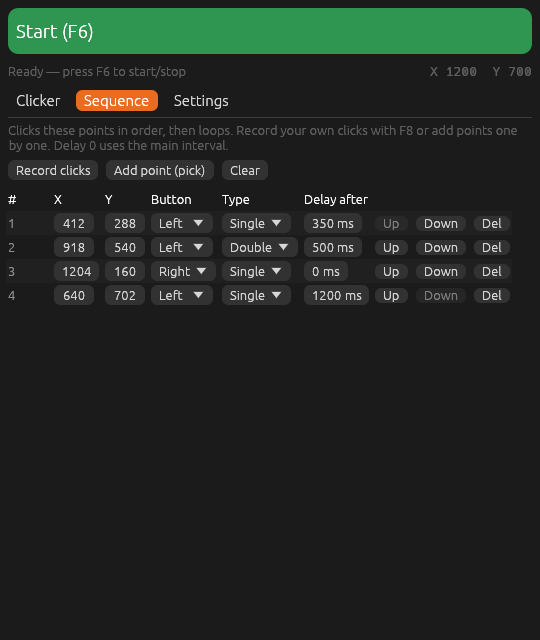
- Press F8 (or click Record clicks).
- Click the places you want, in order. Left, right and middle clicks are all recorded, and quick repeated clicks on the same spot become a double or triple click.
- Press F8 again. The clicks appear as steps, each with the pause you left before the next one.
Edit any X, Y, button, type or delay afterwards, reorder with Up/Down, or add single points with Add point (pick). A delay of 0 uses the main interval. When repeating a set number of times, each step counts as one.
5. Repeat and start delay
Choose Until stopped, a number of times, or a number of seconds. Start delay waits before the first click, so you can start with the button and still have time to put the mouse in place.
6. Hotkeys, fail-safe and profiles
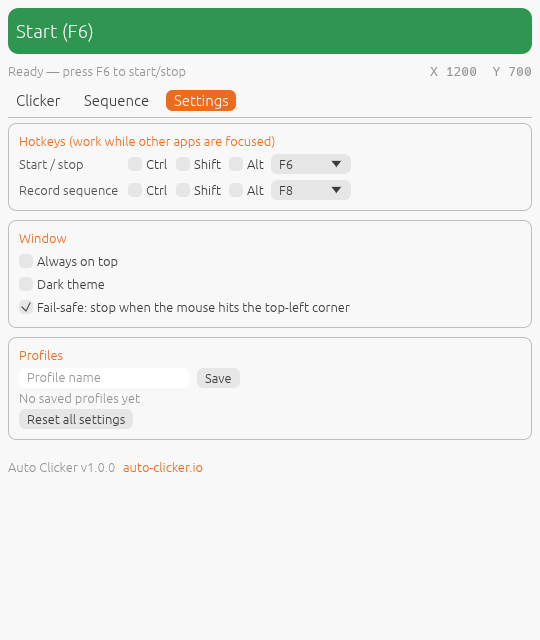
F6 starts and stops; F8 starts and finishes a recording. Both work while another app is in front. Change them on the Settings tab to any F-key, Insert, Home, End, Page Up/Down or Delete, with Ctrl, Shift or Alt.
With Fail-safe on (the default), moving the mouse into the very top-left corner of the screen stops clicking straight away. Always on top keeps the window above others. Save the current setup as a profile to switch between jobs quickly.
Tips
- Most programs only count a few dozen clicks a second. Very short intervals can make a slow app fall behind; 20–50 ms is plenty for most uses.
- Test your speed or the app’s limit with the CPS test.
- Clicks into apps running as administrator on Windows need Auto Clicker to run as administrator too.
- On a Mac, nothing happens until Auto Clicker is allowed under Accessibility.